
Remotely installing the Scoop extension via Fleetsmith is only possible for Mac computers and Chrome browsers. If any part of your workforce uses Windows or Microsoft Edge, the instructions in this article will not apply to them.
- Employee Machines
- Mac
- Employee Web Browsers
- Google Chrome
Requirements
- Employee machines are enrolled into Fleetsmith
Instructions
Fleetsmith does not provide an out-of-box way to manage settings on Google Chrome. To force install an extension, a Fleetsmith admin should deploy a Chrome configuration file on each machine. The steps to do this are:
- Host the this .mobileconfig file somewhere on the internet accessible by Fleetsmith (ex: Dropbox)
- In Fleetsmith, deploy the file using a Custom Bash Script. Example of script:
#!/bin/bash
#Create directory for downloading the .mobileconfig
/bin/mkdir '/tmp/mobileconfig`
#Download the hosted .mobileconfig
/usr/bin/curl -o '/tmp/mobileconfig/FILE_NAME_HERE' 'HOSTED URL HERE'
#Install the .mobileconfig
/usr/bin/profiles -I -F "/tmp/mobileconfig/FILE_NAME_HERE"
#Removes the .mobileconfig (if needed)
rm "/tmp/mobileconfig/FILE_NAME_HERE”
- Once deployed, the employee should have the Chrome extension installed within a few minutes, or the next time they open the browser.
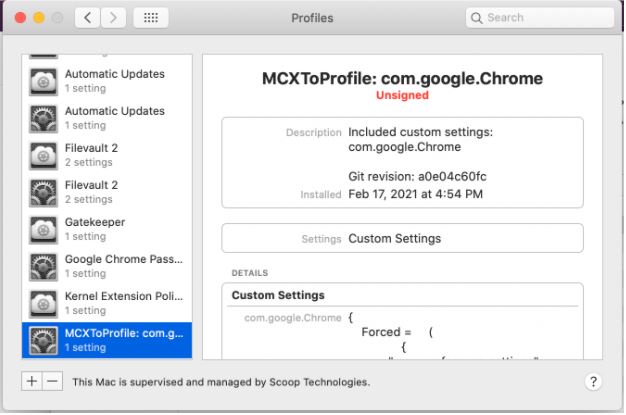
From the employee’s side, they should have a new profile created (under System Preferences -> Profiles) with the Google Chrome settings.
Comments
0 comments
Please sign in to leave a comment.