
Start by completing a CSV with the following fields:
- First name
- Last name
- Employee ID.
All columns must be updated for each row in the CSV. If you do not have employee IDs, we recommend applying a numeric value. The CSV will need to contain your most up to date employee roster every time it is uploaded.
To update a roster, complete the following steps:
- Log into your Scoop dashboard
- Click Roster Management on the left navigation bar
- At the top right of the page click Upload employee roster
- Click Choose CSV
- Select your roster CSV and click open
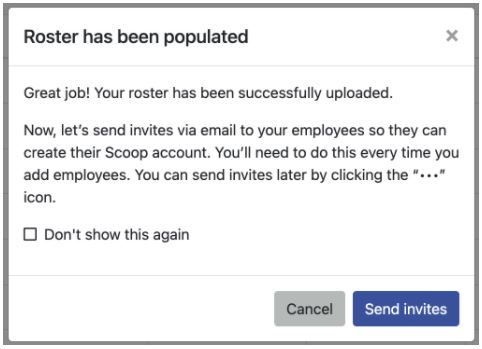
After you have uploaded and saved your roster, a pop-up will surface giving you the option to send Scoop invites to all employees listed within your roster CSV. If you want to send invites to all employees, click “Send invites”. If you do not want to send invites to all employees listed in your roster, simply X out of the pop-up.
How do I send invites to individual employees?
To send an invite to an individual employee, complete the below steps:
- Log into your Scoop dashboard
- Click Roster Management on the left navigation bar
- Locate the desired employee within your Scoop roster
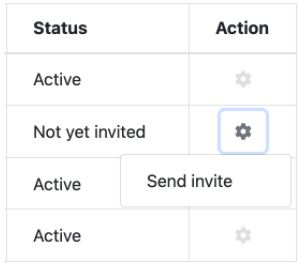
- Click on the tool icon next to the desired employee in the Action column
- Select Send invite
How to add or deactivate employees?
To add or remove employees from your roster, simply repeat the steps above by uploading an updated CSV of your complete and up to date roster. You may need to do this if:
- You make a new hire
- An employee departs your company
Comments
0 comments
Please sign in to leave a comment.